Create Environment
Create additional environments to run tests against different deployments (for example QA, UAT, Staging, or Production).
Step 1: Click Create Environment
Open Environment Variables and click Create Environment.
Step 2: Add basic details
Provide:
- 1Name: Any name (for example QA, UAT, Staging, Prod, or team-specific naming).
- 2Environment URL: Base URL where this environment is hosted.
Step 3: Add variables using Form mode
Choose Form and add variables as key/value pairs.
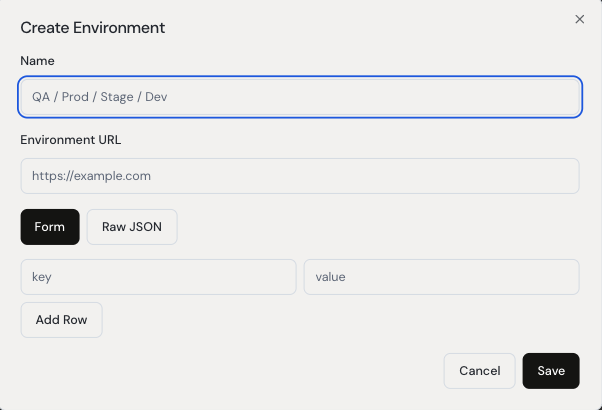
Use Add Row to include multiple variables.
Step 4: Add variables using Raw JSON mode
Choose Raw JSON if you prefer entering all variables in one object.
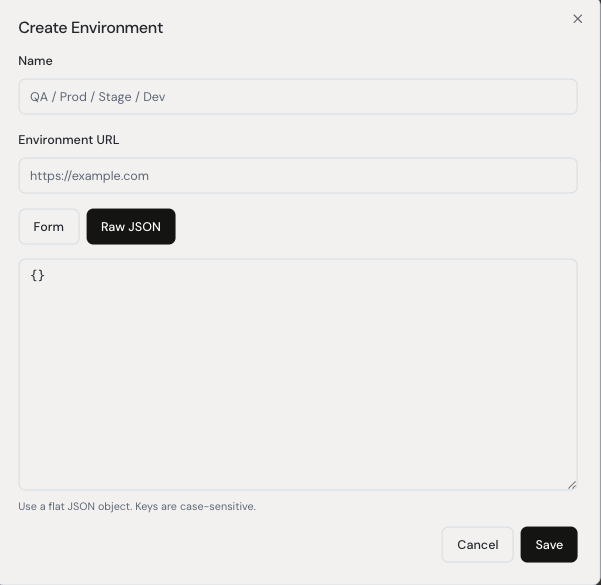
Example:
{
  "BASE_URL": "https://qa.example.com",
  "ADMIN_EMAIL": "qa-admin@example.com",
  "ADMIN_PASSWORD": "replace-with-secure-value",
  "FEATURE_FLAG_NEW_CHECKOUT": "true"
}
Step 5: Save environment
Click Save to create the environment. You can then use these values across test steps.