Feature Test Cases
Test cases are created and managed under each feature. This view helps users track quality coverage and execution readiness.
Step 1: Open a feature test cases list
From Features, open a feature to view its test cases.
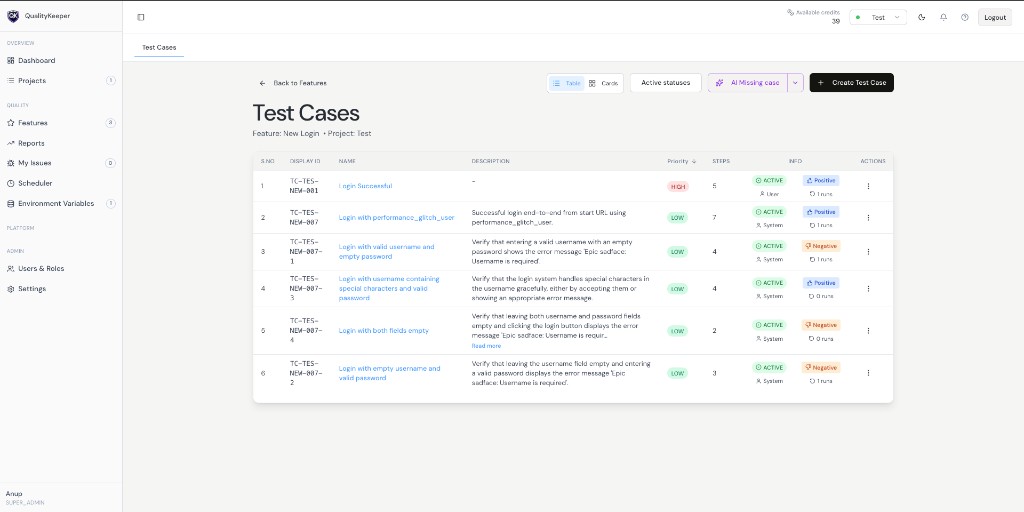
Step 2: Understand test case listing fields
Each row includes:
- 1Display ID: quick identifier to locate the test case and understand feature relation.
- 2Name: test case title.
- 3Description: what the test case validates.
- 4Priority: High, Medium, or Low.
- 5Steps: number of test steps in the case.
Step 3: Understand the Info section
Info reflects four key details:
- 1
Status:
DRAFT,RECORDED,ACTIVE, orAI_DRAFT. After approval,AI_DRAFTbecomesACTIVE. - 2Created by: user or system (AI).
- 3Type: positive or negative.
- 4Run count: number of executions so far.
Step 4: Use actions
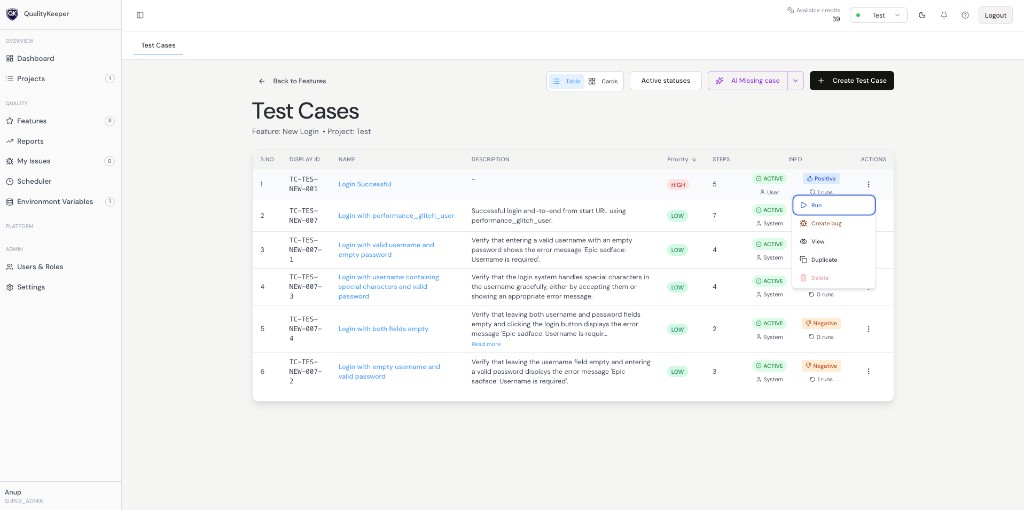
Available actions:
- 1
Run: execute a test case. Pre-requisite: xpaths/locators should be sorted (covered in Test Steps section).
- 2Create Bug: raise issue when a failure indicates a bug (covered in My Issues section).
- 3View: open full case details (row click works too).
- 4Delete: remove a test case.