Settings
Open Manage → Settings to configure your profile, default execution options, and stored files. The page has three tabs: Profile, Execution, and Storage.
Profile tab
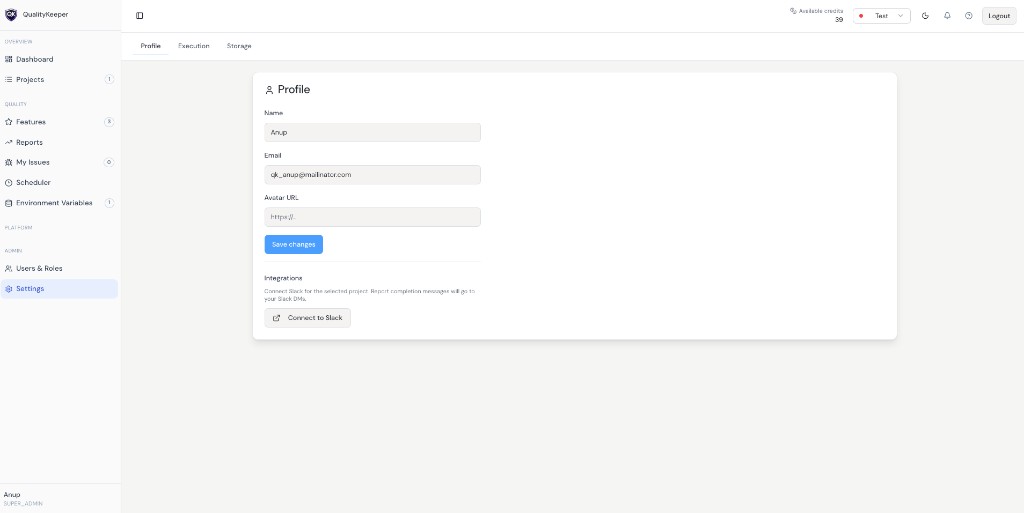
Personal details
Update your display information:
- Name
- Avatar URL — optional image URL (for example
https://...)
Click Save changes to apply updates.
Integrations — Slack
Under Integrations, you can connect Slack for the selected project. When connected, report completion messages can go to your Slack workspace (for example DMs).
Beta note: Slack linking is in beta. Right now only one user can enable this connection—plan for a single account being the Slack integration owner until broader support ships.
Execution tab
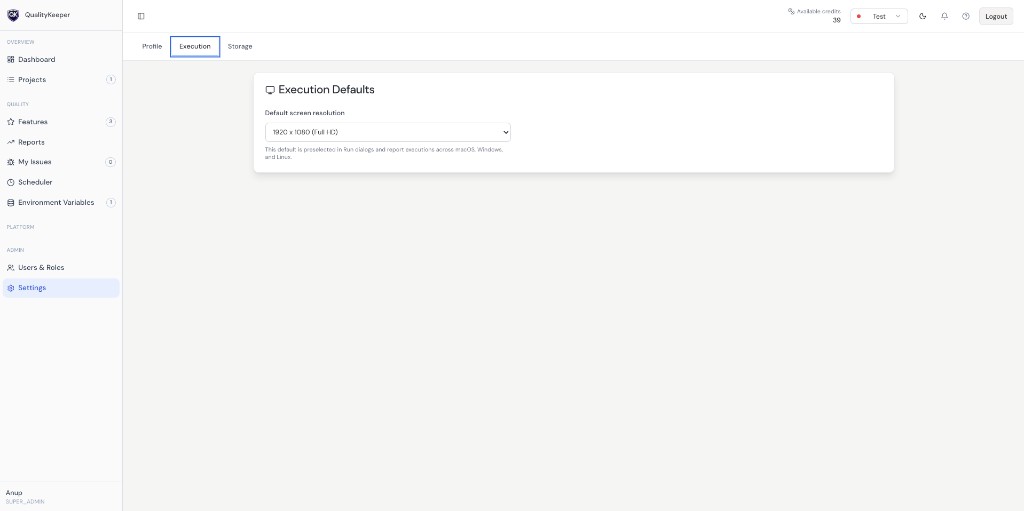
Execution Defaults sets the default screen resolution used when you run or execute tests (for example in run dialogs and report executions). The default applies across environments (macOS, Windows, Linux) unless you choose otherwise.
When you Run or Execute, you can still change the resolution in that dialog—this tab only sets what is pre-selected so you don’t have to pick the same size every time.
Storage tab
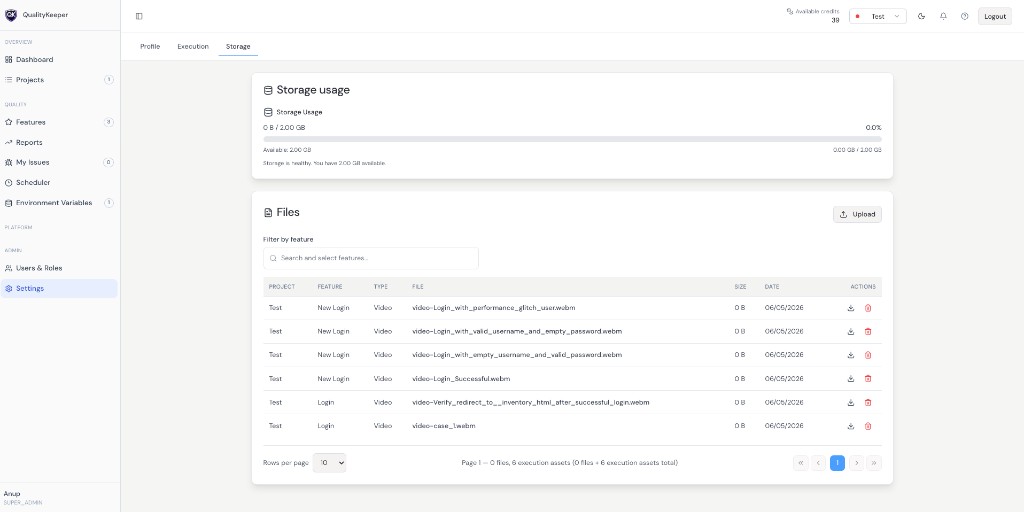
Quota
By default, all plans include 2 GB of storage. The Storage usage section shows how much you have used, remaining space, and a short health message when you are within quota.
Files
The Files section lists assets tied to your work (for example execution videos and related files). You can:
- Filter by feature using the search field
- Upload when applicable
- Download a file
- Delete a file you no longer need
Use pagination and Rows per page to move through large lists.
Related: Users & Roles · Credits