Users & Roles
Use Users & Roles to manage who belongs to your organization, which projects they can access, and what they can do in each project.
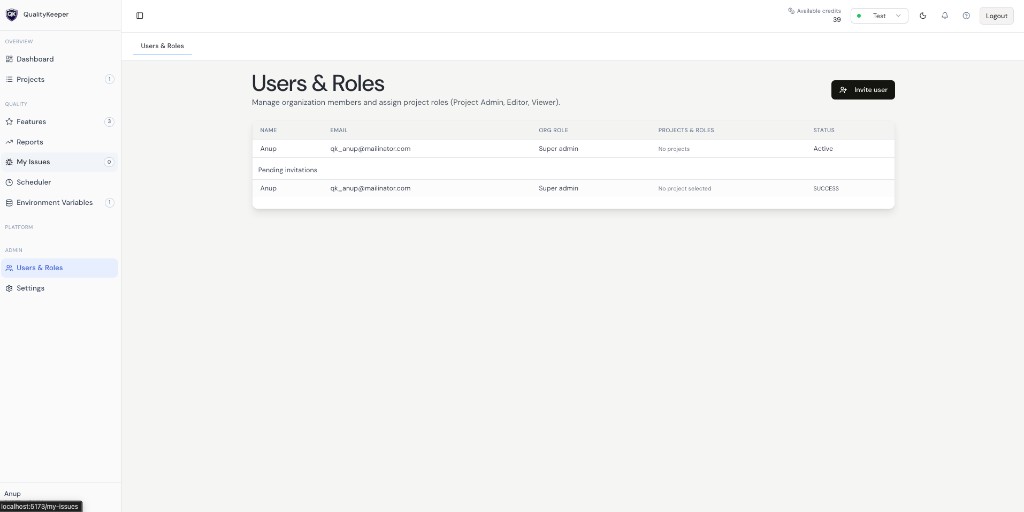
What you see on the listing
The page shows members and pending invitations in a table with columns such as:
- Name and Email
- Org role (for example Super admin)
- Projects & roles (per-project access, or a message when none are assigned)
- Status (for example Active for members, or invitation state for pending invites)
Use + Invite user to add someone new.
Invite a user
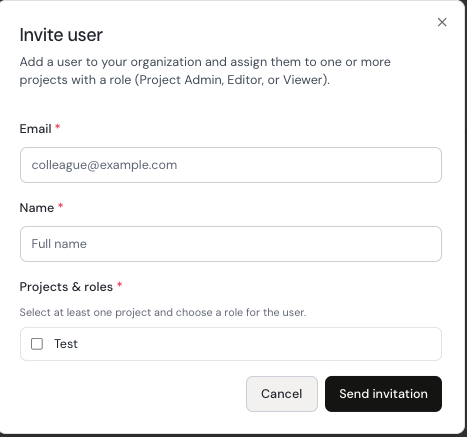
- 1Click + Invite user.
- 2Enter their Email and Name.
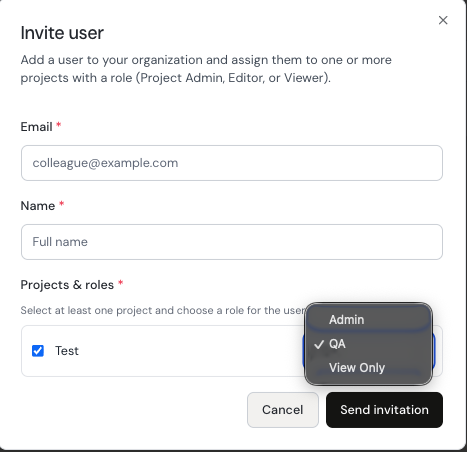
- 3Under Projects & roles, select at least one project and choose a role for that user on each selected project.
- 4Click Send invitation. They receive an invite and, after accepting, their access matches the roles you set.
Project roles
For each selected project, assign one of:
- Admin — full project administration for that project
- QA — can work on quality flows for that project
- View only — read-only access for that project
Who can invite others
- Organization admins (for example Super admin) can invite users and may assign Admin, QA, or View only on projects.
- Users with QA or View only on a project cannot invite other users or manage org membership.