Test Case Tab - State Data
State Data stores test-case level values that can be reused in steps and assertions.
State Data listing
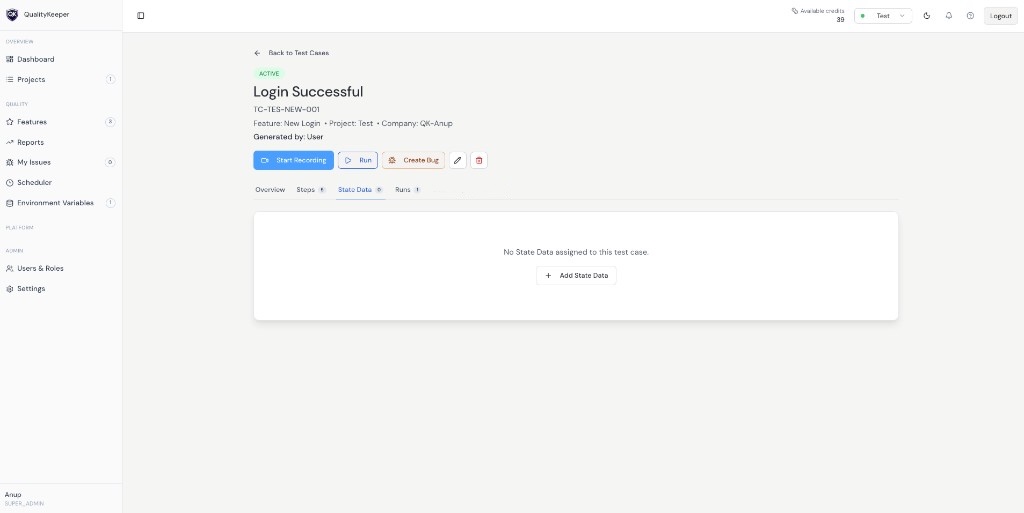
From the State Data tab, you can view all key-value pairs attached to the current test case.
If no state values are assigned yet, use Add State Data to create them.
How to create state data
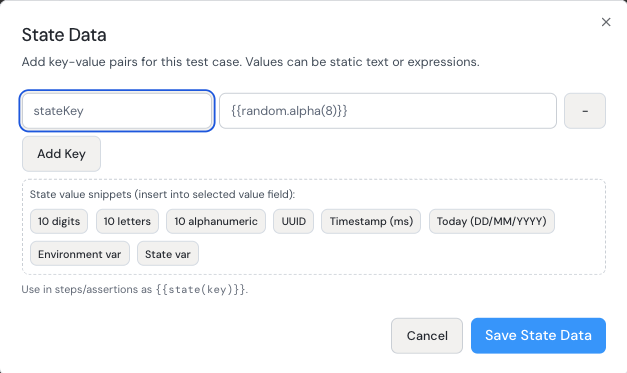
You can create state data directly from the State Data tab.
- 1Open
State Datatab and click Add State Data. - 2Enter a key (for example
stateKey) and value. - 3Click Add Key to add more key-value rows in the same flow.
- 4Click Save State Data to persist the values.
Supported value patterns
State values can be static text or expressions.
The modal supports quick snippets like:
10 digits10 letters10 alphanumericUUIDTimestamp (ms)Today (DD/MM/YYYY)Environment varState var
Value references in steps
Use state data in step inputs with state expressions (for example {{state("keyName")}}).
You can combine state references with static text and other supported expressions where applicable.
Notes
- Keep key names readable and consistent.
- Use state data for case-specific values you want to reuse across multiple steps.
- Use environment variables for environment-level values shared across many test cases.